Overview
The Buyer Intent Search helps you find people who are actively searching for the products or services you offer. Instead of purchasing a generic list of names and contact information, Buyer Intent Search identifies individuals who have already demonstrated interest by performing actions such as searching online, submitting forms, comparing providers, or requesting quotes.
By focusing on these intent signals, you can connect with prospects who are more likely to be interested in your business, making your outreach more targeted and effective.
How to Use Buyer Intent Search
Step 1: Open Buyer Intent Search
There are two ways to access Buyer Intent Search:
Option 1: From Lead Search
- Click Lead Search.
- Select New Search.
Option 2: From Saved Lists
- Open Saved Lists.
- Create a New List or open an existing Buyer Intent Search list.
- Click Start New Search.
This opens the Buyer Intent Search page where you can configure your search criteria.
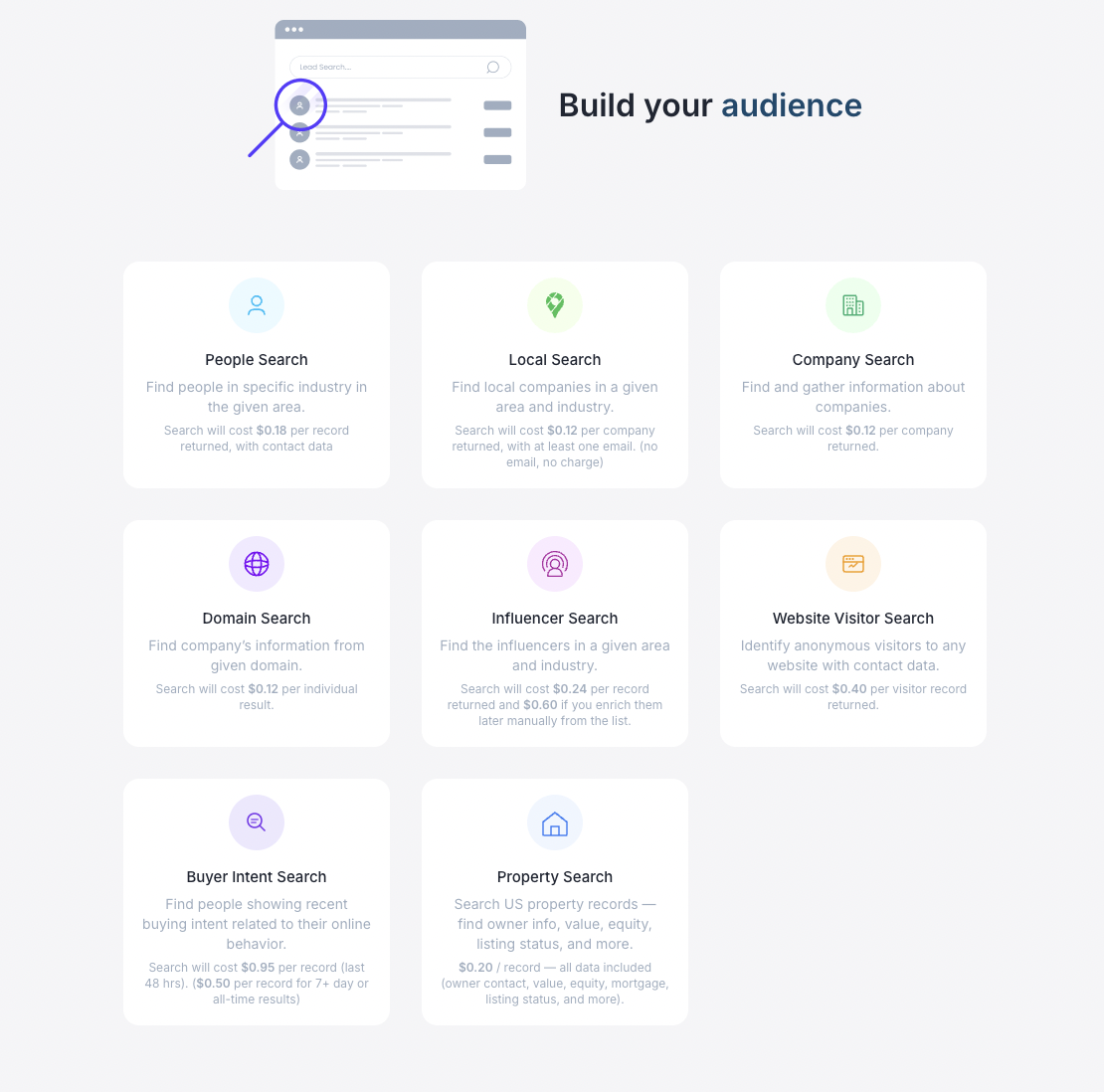
Step 2: Enter Your Target Audience or Keywords
Under the Keyword or Description field, describe your ideal audience or enter keywords related to your business.
The more specific your description, the better your search results will be.
Examples
- Homeowners interested in solar panels
- Homeowners interested in insurance
- Final expense insurance agent
- Auto repair shop
The system understands both:
- What people are searching for
- The type of business you operate
This allows it to match prospects based on products, services, and related search intent.
Step 3: Set the Search Limit
The search limit determines how many leads are returned.
By default, the limit is set to 10 leads.
This allows you to:
- Review the quality of results first
- Refine your keywords or filters if needed
- Avoid generating an unnecessarily large list
If no limit is set, the search may return hundreds or even thousands of matching contacts.
You can manually enter a larger number whenever needed.
Step 4: Choose a Date Range
Select how recently you want prospects to have shown buying intent.
- All Time
- Last 30 Days
- Last 7 Days
- Last Couple of Days
Selecting a shorter date range helps you find people who have expressed interest more recently.
Step 5: Filter by Location
You can narrow your search geographically by entering:
- State
- City
- ZIP Code
Multiple states and cities can be entered.
Note: ZIP Code takes priority over State and City filters when provided.
Step 6: Apply Demographic Filters (Optional)
Depending on your target audience, you can filter results using demographic information such as:
- Minimum Age
- Maximum Age
- Gender
- Marital Status
- Has Children
- Homeowner Status
These filters help you better match your ideal customer profile.
Step 7: Exclude Do Not Contact (DNC) Leads
Enable the Exclude DNC option to remove contacts listed on Do Not Contact registries.
All returned leads are filtered to help ensure DNC contacts are not included.
Step 8: Adjust Lead Quality Filters
Buyer Intent Search includes two quality indicators that can help refine your results.
Lead Tier
Lead Tier is an internal quality score based on:
- Data match confidence
- Non-DNC verification
Match Score
Match Score measures how confidently the information belongs to the correct person using:
- Skip trace verification
- Intent signal strength
Increasing these values returns more qualified matches, while lowering them broadens your search.
Step 9: Apply Financial and Professional Filters (Optional)
Additional filters are available to further narrow your audience, including:
- Credit Rating
- Income Range
- Net Worth
- Job Title (when available)
These filters can be especially useful for businesses targeting specific income levels or professional roles.
Step 10: Run Your Search
Once your filters are configured, click Search.
The system will generate a list of people whose online activity indicates interest in your products or services.
Reviewing Your Results
Select any contact from the results list to view detailed information.
Each lead may include:
Contact Overview
A summary of the prospect along with suggested next steps for outreach.
Contact Information
When available, you'll see:
- Mobile phone number
- Email address
- Street address
- City
- State
- LinkedIn profile
- Contact quality notes
Company Information
If available, the system will display associated business information.
Household Signals
Additional household insights may include:
- Age range
- Marital status
- Children
- Homeowner status
Financial Signals
Available financial information may also be displayed to help you better understand the prospect.
Using the AI Assistant
Like other lead searches, Buyer Intent Search includes the built-in AI Assistant for individual contacts.
The AI Assistant can help you better understand a lead and assist with preparing personalized outreach.
Viewing Raw Data
For users who need complete data visibility, the Raw Data section displays:
- Every available data field associated with the contact
- The corresponding field names used when sending the lead to your CRM
This makes it easy to understand exactly what information will be transferred during export or CRM integration.
Conclusion
Buyer Intent Search helps you identify prospects who have already demonstrated interest in products or services like yours. By combining buyer intent signals with location, demographic, financial, and quality filters, you can build highly targeted lead lists instead of relying on broad contact databases.
Start with a smaller search limit, review the results, and refine your keywords and filters as needed. This approach helps you consistently find more relevant prospects and maximize the value of your searches.
Was this article helpful?
That’s Great!
Thank you for your feedback
Sorry! We couldn't be helpful
Thank you for your feedback
Feedback sent
We appreciate your effort and will try to fix the article