What' New?
A dedicated Google Ads section is now available in the Dashboards widget panel — connect your Google Ads account once at the account level and all 11 widgets pull data automatically
11 ready-to-use widgets:
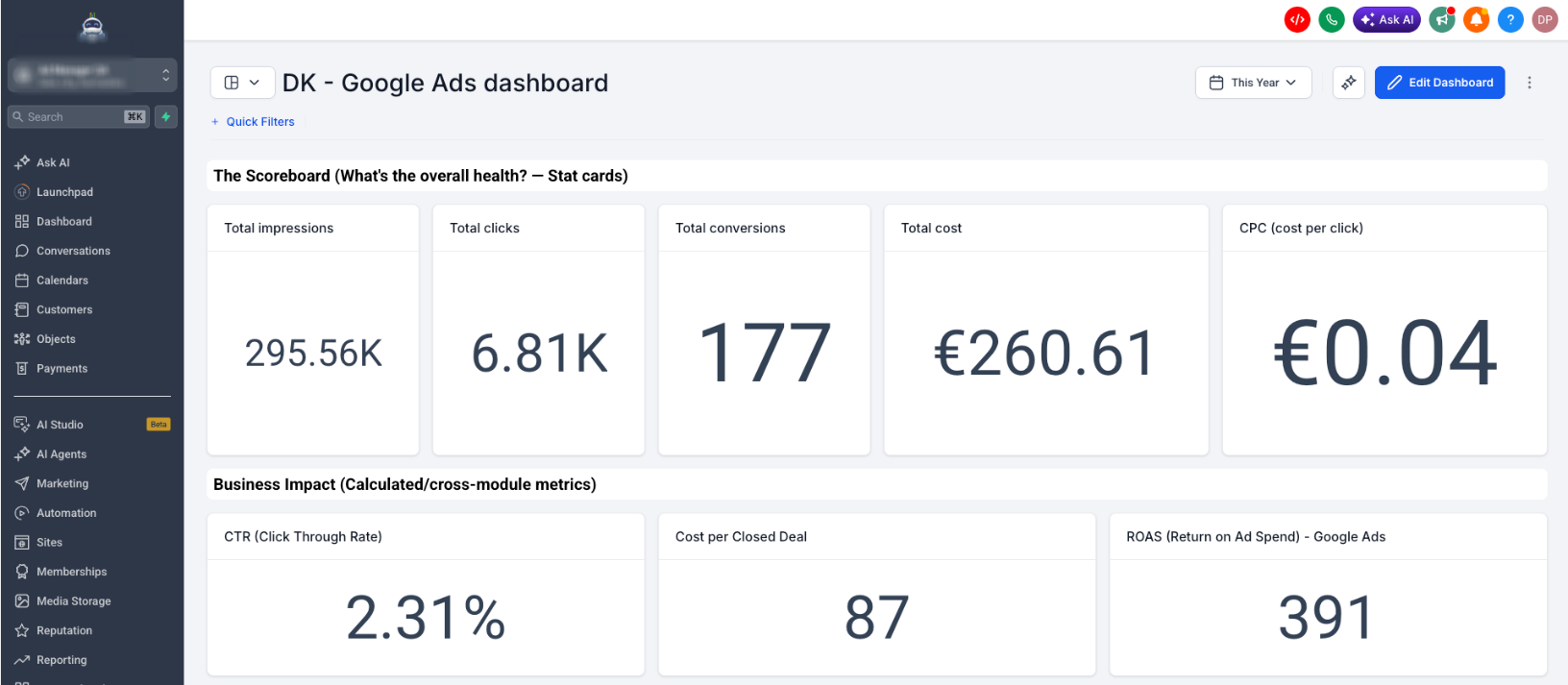
• Total conversions
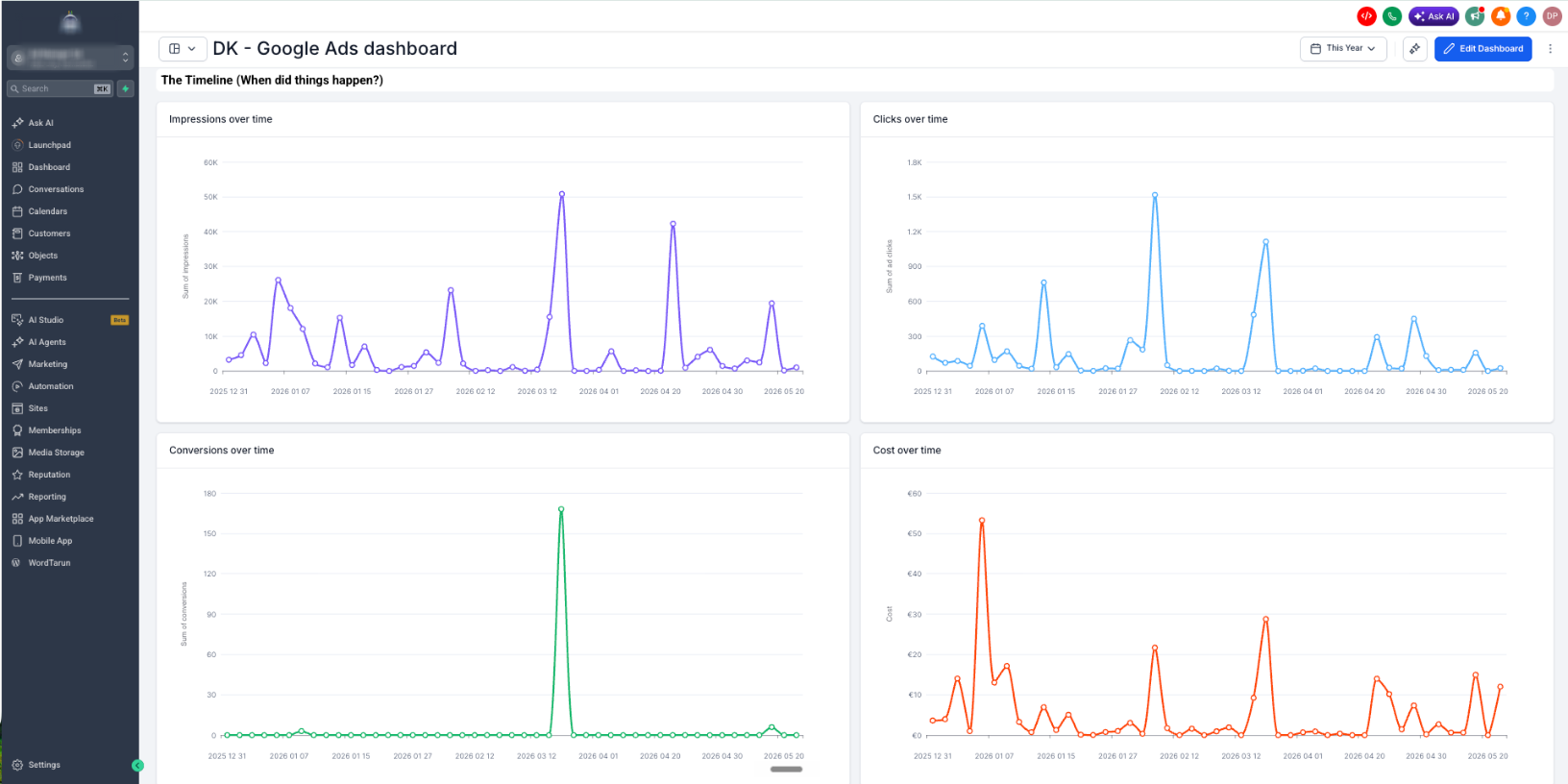
• Conversions over time
• Total cost
• Cost over time
• Total clicks
• Clicks over time
• Total impressions
• Impressions over time
• Clicks by campaign
• Conversions by campaign
• CPC (cost per click)Each widget is fully configurable — filter by Campaign, Campaign type, Zero impressions, Zero conversions, or PPC markup to surface exactly the data your clients need
Google Ads metrics are now available as dimensions in Custom Metrics — build cross-module KPIs like ROAS or Cost per closed deal using the formula builder today
How It Works:
Connect Google Ads at the account level under Settings → Integrations → Google Ads — all widgets inherit this connection automatically
Open any dashboard and click Edit dashboard
Click + Add widget and scroll to the new Google Ads section
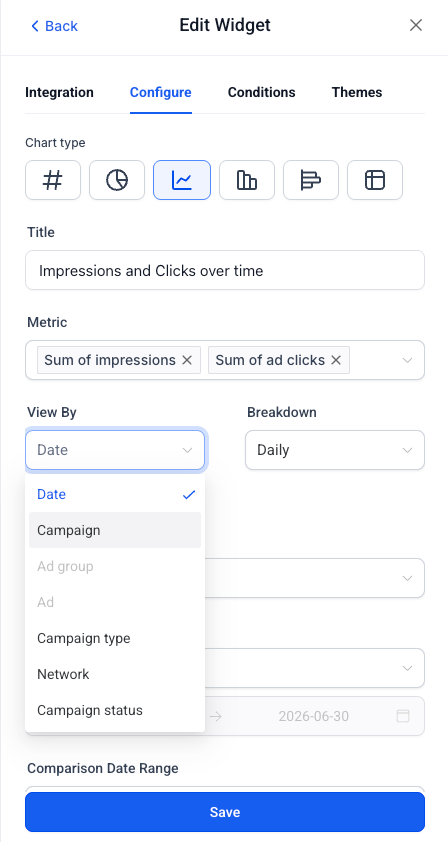
Pick a widget, confirm your linked Ad account in the Integration tab, configure filters and chart type, and click Save changes
Why It Matters:
Everything in one place — Google Ads performance now sits alongside your other reporting widgets, so account admins can see spend, clicks, and conversions without logging into a separate platform
Spend visibility at a glance — Total cost and Cost over time make it immediately clear how much is being spent and when, so there are no surprises at the end of the month
See what's actually working — Clicks by campaign and Conversions by campaign break performance down to the campaign level, making it easy to identify top performers and underperformers
Connect ad spend to business outcomes — With Google Ads now available in Custom Metrics, you can combine ad data with pipeline and revenue data to show clients the real return on their ad investment
What's Next?
More cross-channel reporting combining Google Ads with other marketing sources is on the roadmap
Notes:
Google Ads must be connected at the account level before widgets will show data — go to Settings → Integrations → Google Ads to connect
All 11 widgets support filtering by Campaign, Campaign type, Zero impressions, Zero conversions, and PPC markup
Available in Dashboards, Reporting, and Custom Metrics
Available on all plans that include Dashboards & Reporting
Was this article helpful?
That’s Great!
Thank you for your feedback
Sorry! We couldn't be helpful
Thank you for your feedback
Feedback sent
We appreciate your effort and will try to fix the article